
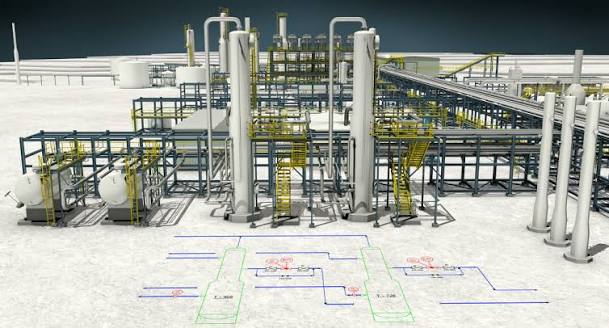
AutoCAD P&ID
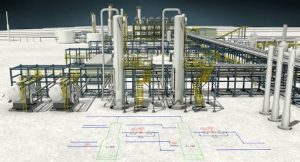
An AutoCAD P&ID (Piping and Instrumentation Diagram) training outline teaches you to create and manage smart industrial schematics. You will learn to use industry-standard symbols, link lines to equipment, set up intelligent tags, extract reports, and validate your plant designs.
- Interface and Environment Setup
- User Interface: Get to know the ribbon, tool palettes, and the workspace for P&ID.
- Project Manager: Learn to start new projects, open existing ones, and manage drawing files.
- Standards: Select drafting standards like PIP, ISO, DIN, or JIS.
- Property Settings: Set drawing properties to fill out title blocks automatically.
- P&ID Equipment and Nozzles
- Placing Equipment: Add items like tanks, pumps, vessels, and compressors to the drawing.
- Editing Symbols: Modify existing symbols and learn to create custom blocks.
- Nozzles: Attach nozzles to equipment and configure how they behave when connected to lines.
- Piping and Instrumentation
- Drawing Pipelines: Create primary lines, secondary lines, and instrument lines.
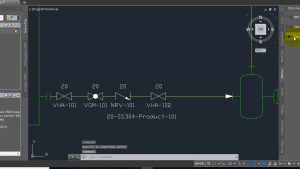
- Inline Assets: Place valves, reducers, and inline instruments which automatically break and trim the pipe.
- Flow Direction: Add and reverse flow arrows, and group piping segments to share data.
- Tags and Annotations
- Tagging Concepts: Assign tags to equipment and pipelines (e.g., pipe size, line number, and specifications).
- Annotation Styles: Create and edit labels to display component tags clearly.
- Painter Settings: Use color-coding to easily identify lines with specific properties or specifications.
- Data Manager and Reports
- Data Manager: View and edit drawing data, export it to Excel, and import updates back into your project.
- Generating Reports: Create bills of materials and lists for valves, lines, and equipment.
- Off-Page Connectors: Link pipelines that continue across multiple drawings.
- Project Validation and Customization
- Design Validation: Run checks for errors like unconnected lines or size and specification mismatches.
- Project Setup: Configure custom tag styles, annotation formats, and P&ID class definitions to meet your company’s needs.
- Tool Palette Customization: Create custom tool palettes so your team can quickly access project-specific symbols.



Related Articles